

How to Use TS Team Migration Tool?
Experience seamless migration with the TS Team Member Migration Tool, the top choice for transitioning from other Team plugins to the highly customizable team member showcase in the industry. In this documentation, we will cover everything about the TS Team Member migration tool.
Currently, TS Team Member migration tools support WPS Team, Team by RadiusTheme & WP Team.
Our Suggestions Before Migration
Attempting to migrate from your Team plugin to another without a well-defined process can lead to a range of challenging issues.
To ensure a smooth and trouble-free migration, we recommend conducting a trial migration on a staging site, which is a clone of your real website. This allows you to identify and resolve any potential issues without affecting your live site.
Requirements Before Migration
Before starting migration, you have to install and activate TS Team Member, your existing Team plugin.
Let’s Learn How to Use the TS Team Member Migration Tool
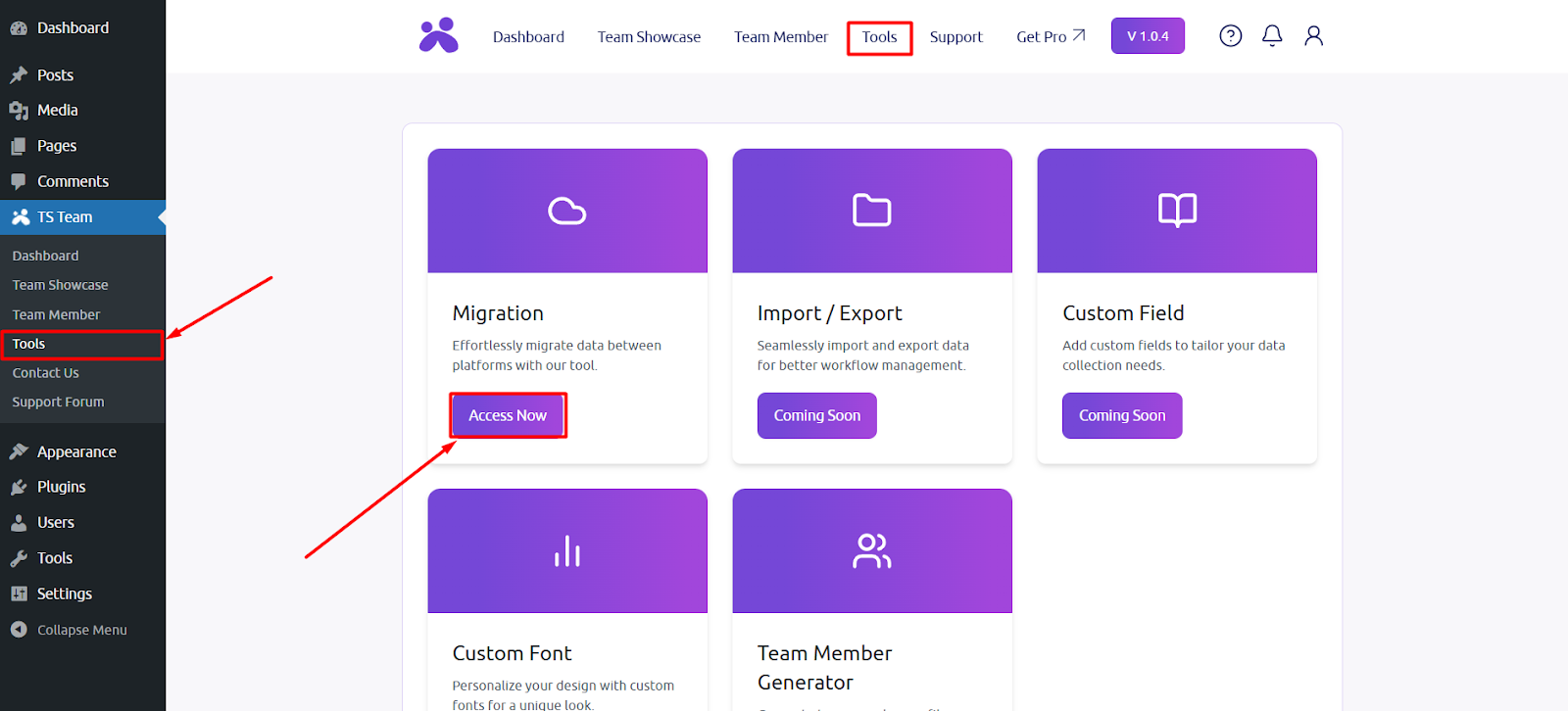
You can find the migration tool by clicking on Tools section and selecting the “Access Now” button
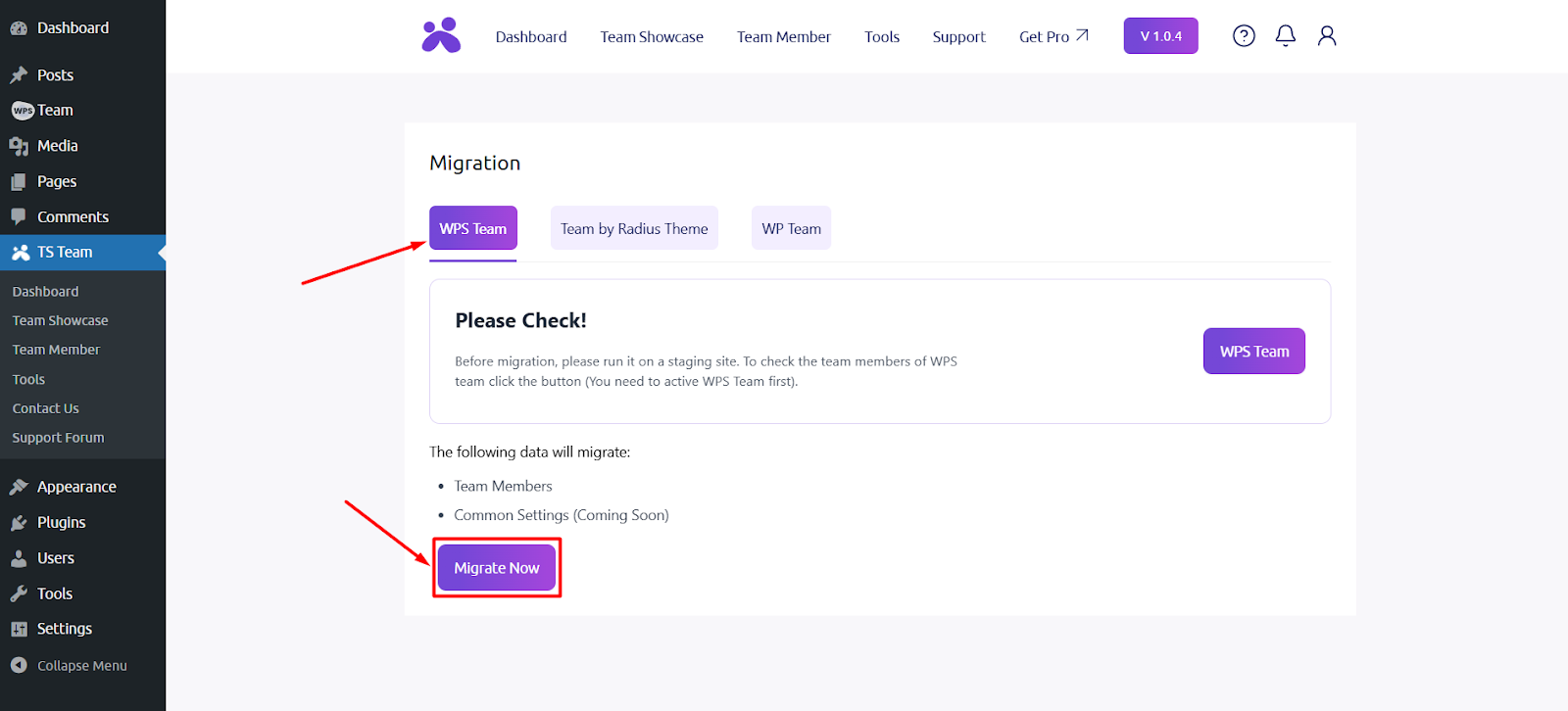
Now choose the existing Team plugin you are using and click on that. After selecting your preferred Team Showcase, all the show items will be migrated. So to migrate, click on Migration Now option. Again, we are recommending you run the migration on a staging site first.
Once the migration is complete, all members will be shown in the “Team Member” section!
