

How to Translate TS Team Member Language via Loco?
We presume that you’ve already installed and activated the TS Team plugin on your WordPress site. So, let’s learn how easily you can translate the TS Team language via LOCO.
Installing Loco Translate
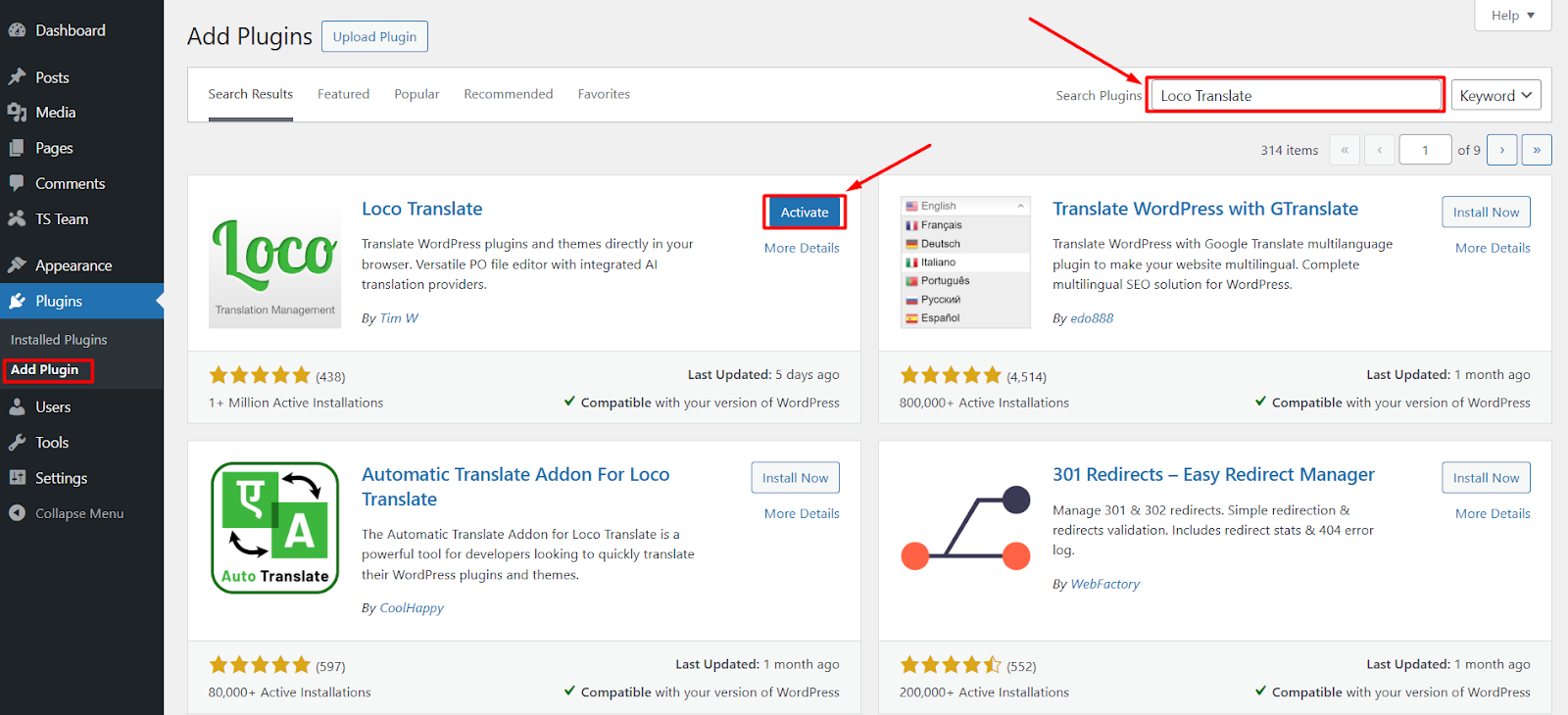
First, log in to your WordPress website’s dashboard and click Plugin> Add New, search Loco Translate on the search bar, and press enter. When the plugin appears, click the Install button and activate the plugin after installation.
Utilizing the Loco Translate
Now go to Settings > General and select your language from the dropdown menu of Site Language. In this example, we have selected the Bangla language (বাংলা) for translation purposes.

After that, go to Loco Translate and click Plugin since we are translating the language of the TS Team plugin. From the plugin list of Loco Translate, click the TS Team Member Showcase
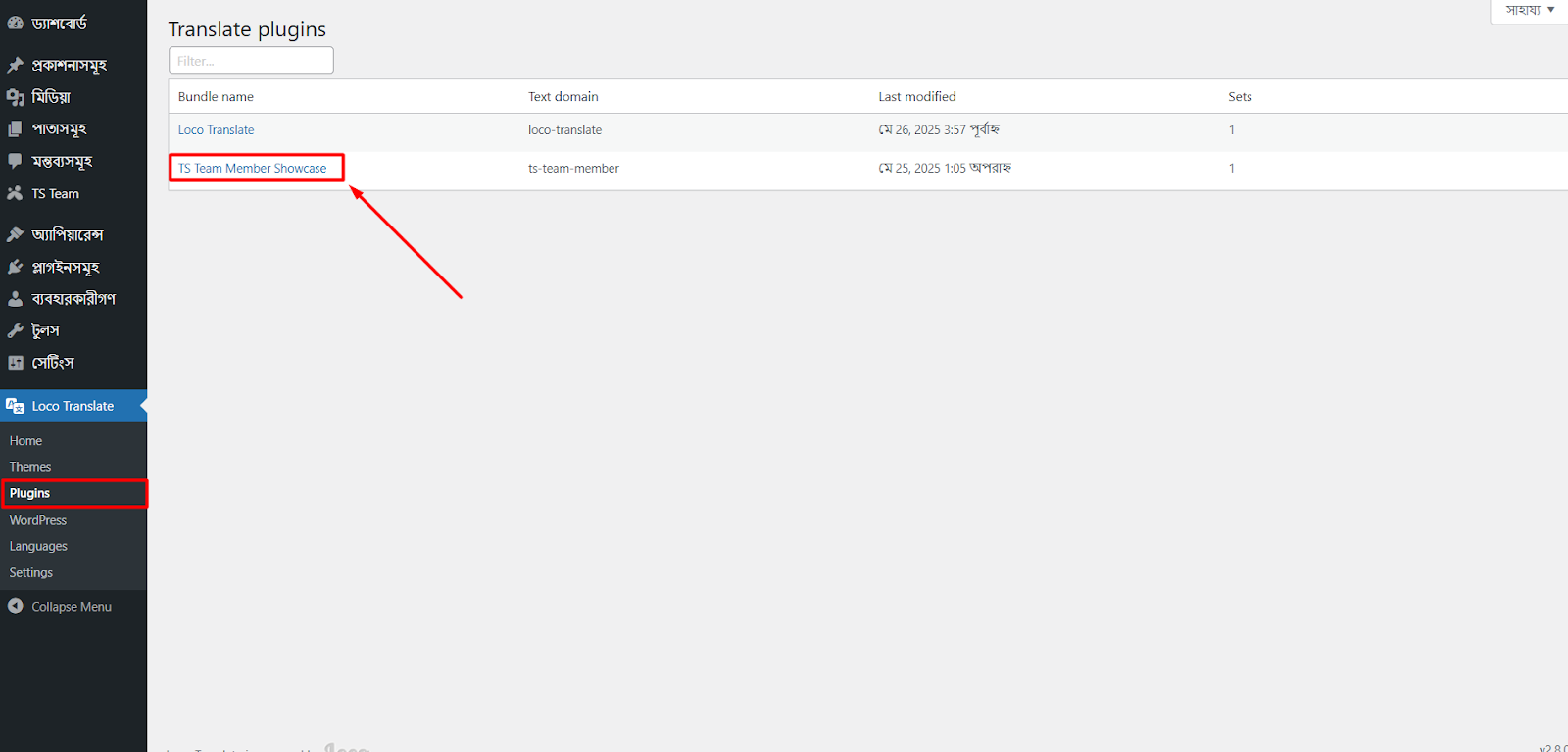
Click the New Language option that is located just below the heading TS Team Member Showcase.

At this point, you have to initialize a new translation for the TS Team Member Showcase. Select Bangla language (own language) from the dropdown menu and set the location mention as picture in the language/plugins/ts-team-member-bn_BD.po
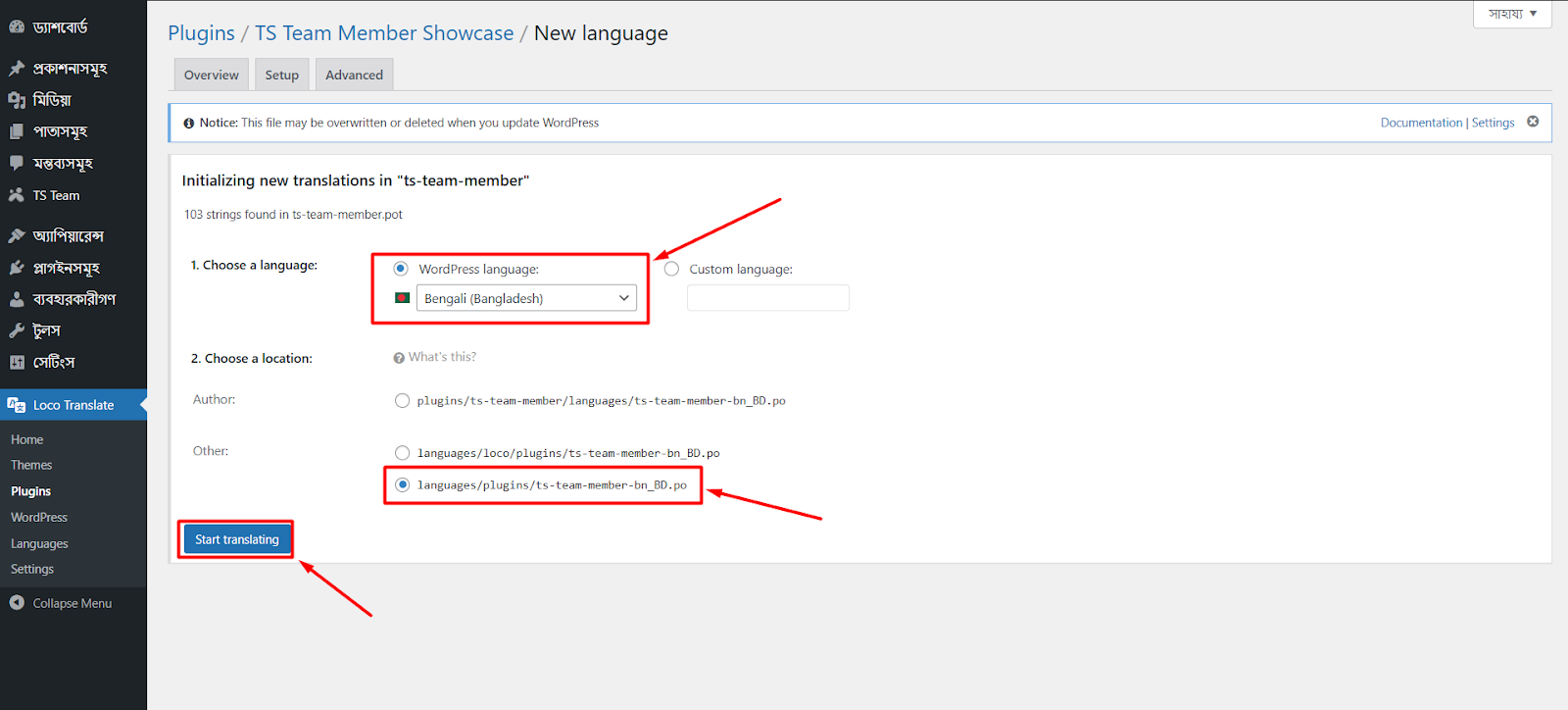
After clicking the Start translating button, you will be taken to the translation interface. On this interface, you can see all the strings of TS Team Member that are already there in the English language. As you can see, there are 103 strings available and untranslated because we haven’t started translating those yet.
You can initiate the translation process by selecting your word from the list or by filtering it from the search bar.
Now go to TS Team plugin section, and you can see the “Team Showcase” is translated to the Bangla language “টিম শোকেস”
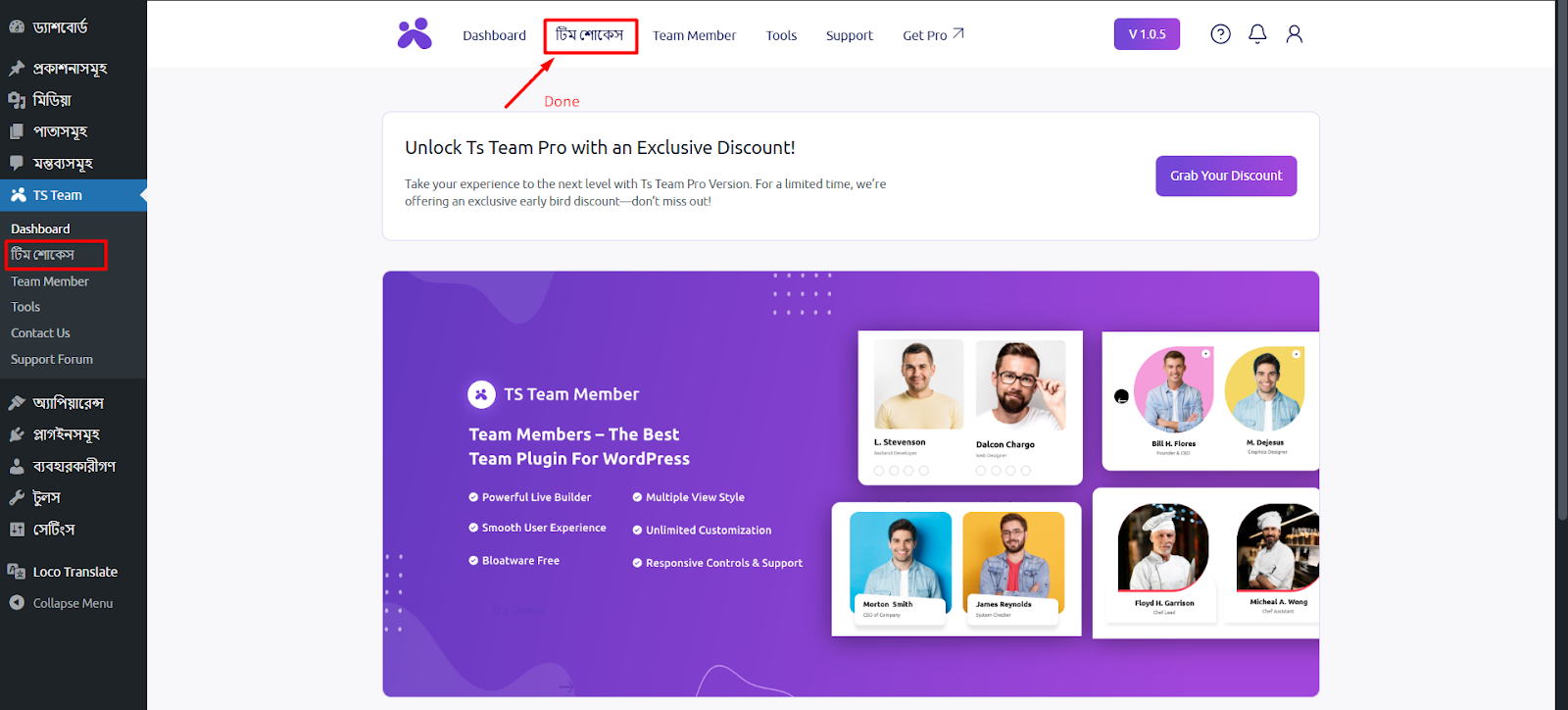
So, you can easily translate the TS Team Member plugin’s language into your chosen language using the Loco Translate plugin. We didn’t exclude any of the phases while describing the translation process.