Welcome to the TS Team Member plugin installation process guideline. In this documentation, we’d like to introduce you to the process of setting up TS Team Member on your WordPress website. To use this fantastic plugin, you’ll need PHP and WordPress to be in the following versions:
- WordPress Version – 3.0.1 or higher
- PHP Version – 5.4 or higher
To install TS Team Member in your WordPress dashboard, simply follow the instructions:
Install Via WordPress
Step 1: Login and Go to Plugin Section
Firstly, you must log in to your WordPress website and access the admin panel or dashboard. There are many options to configure your WordPress site in the left-hand menu area.
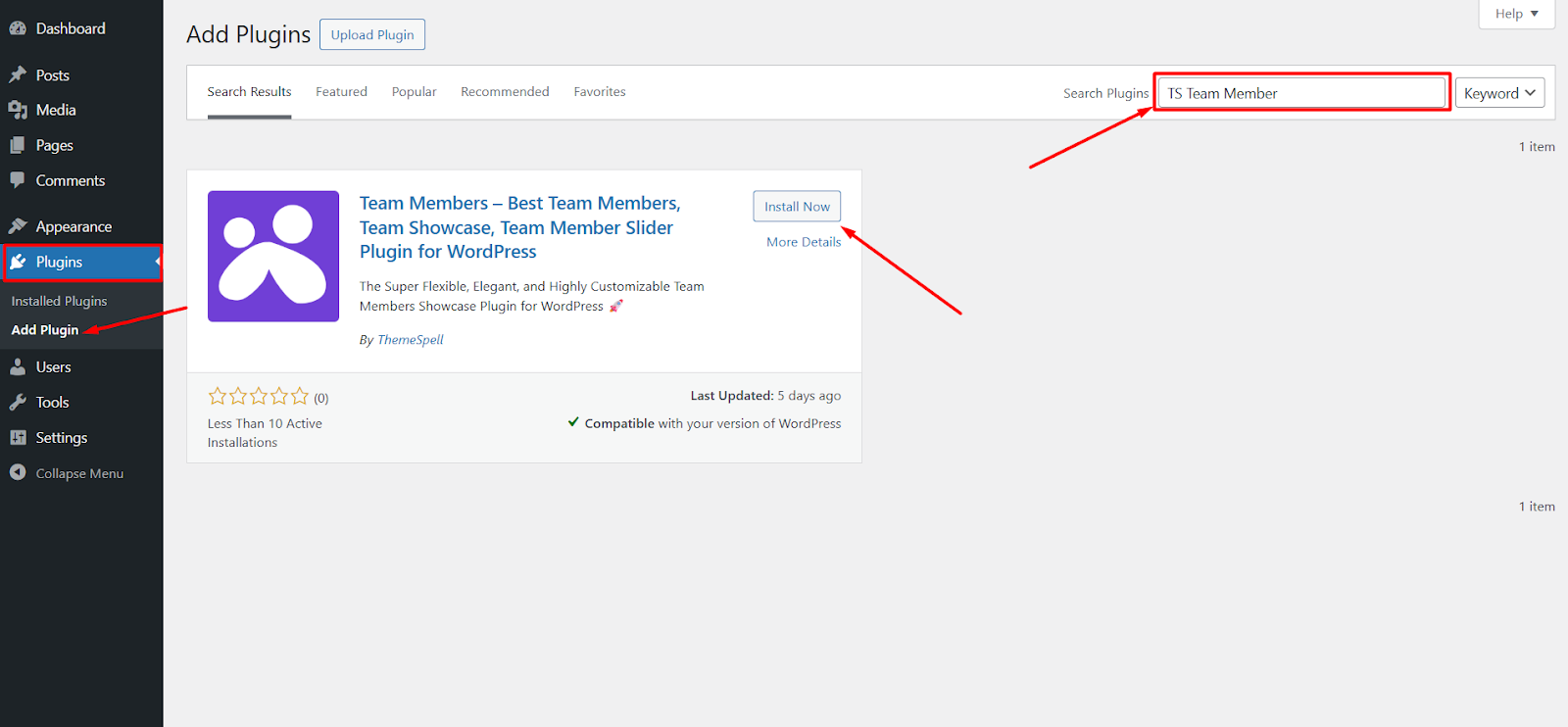
Simply click on “Plugins” section and seach TS Team Member plugin. Now click the “Install Now” button right beside the plugin name and wait for the process to complete.
Step 2: Activate the TS Team Member Plugin Free Version
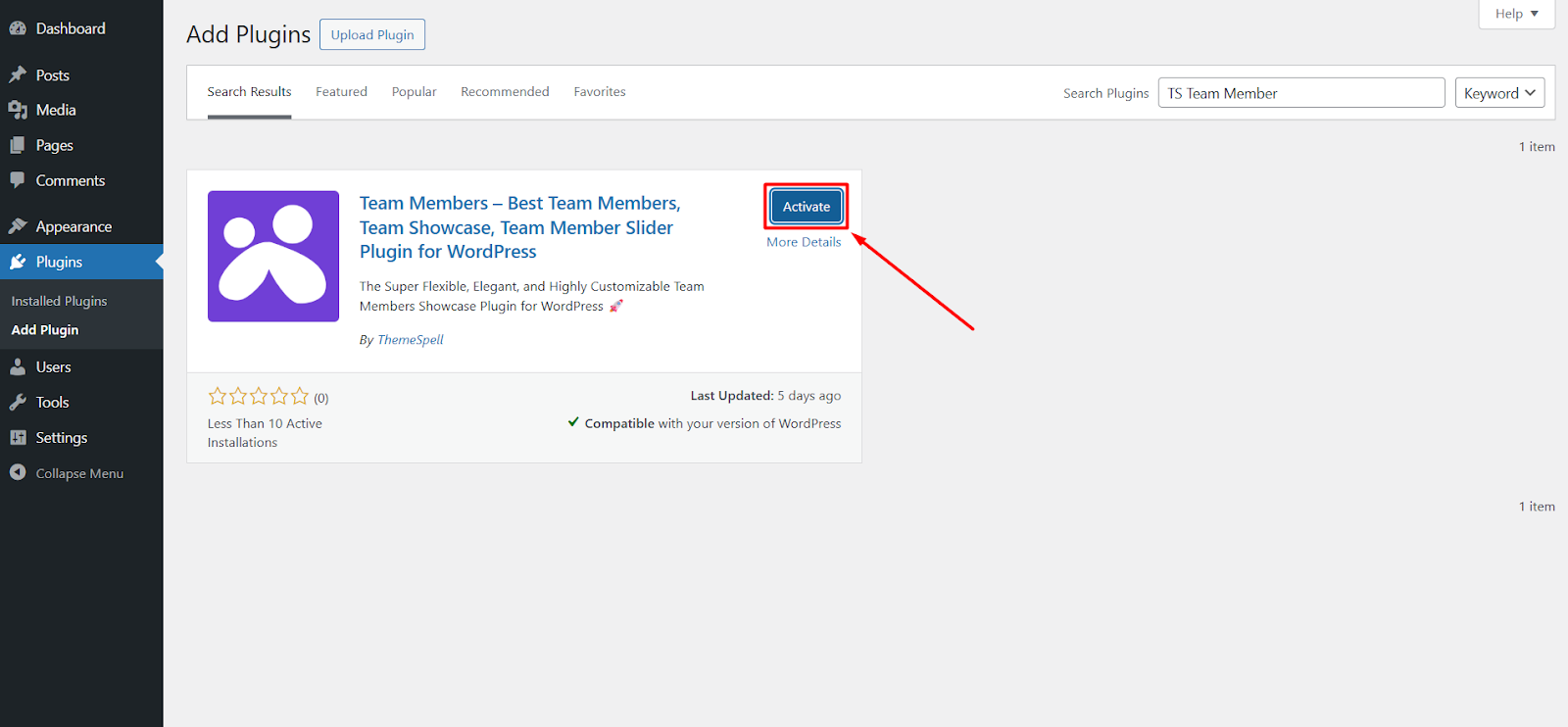
When the installation is done, the Activate button will appear. Click the “Activate” button and wait until the plugin gets activated
Step 3: Explore the TS Team Member Free Plugin
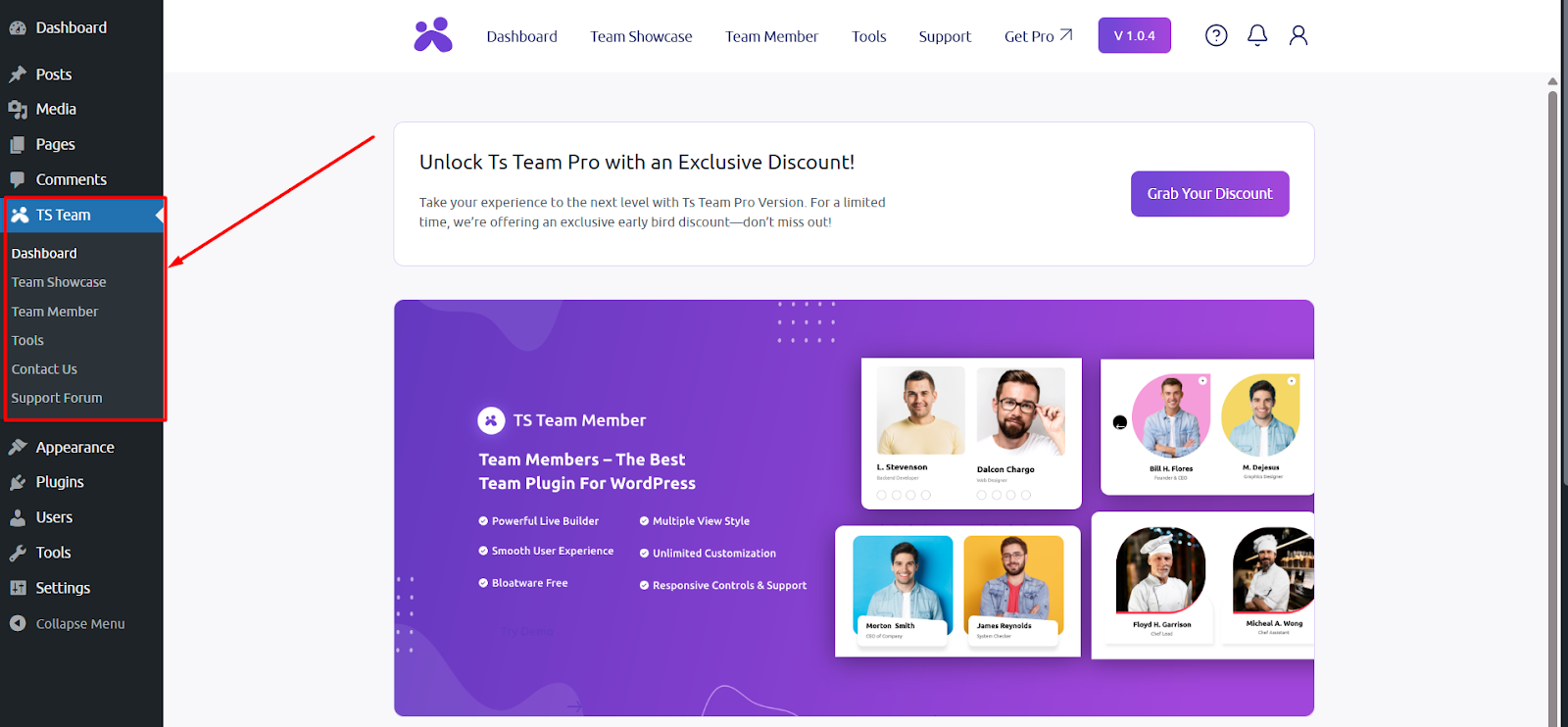
When the Activation process is completed, you will be able to see the TS Team plugin in your dashboard. You’ll be prompted with the TS Team user interface after clicking it.