

How to Create A Team Member?
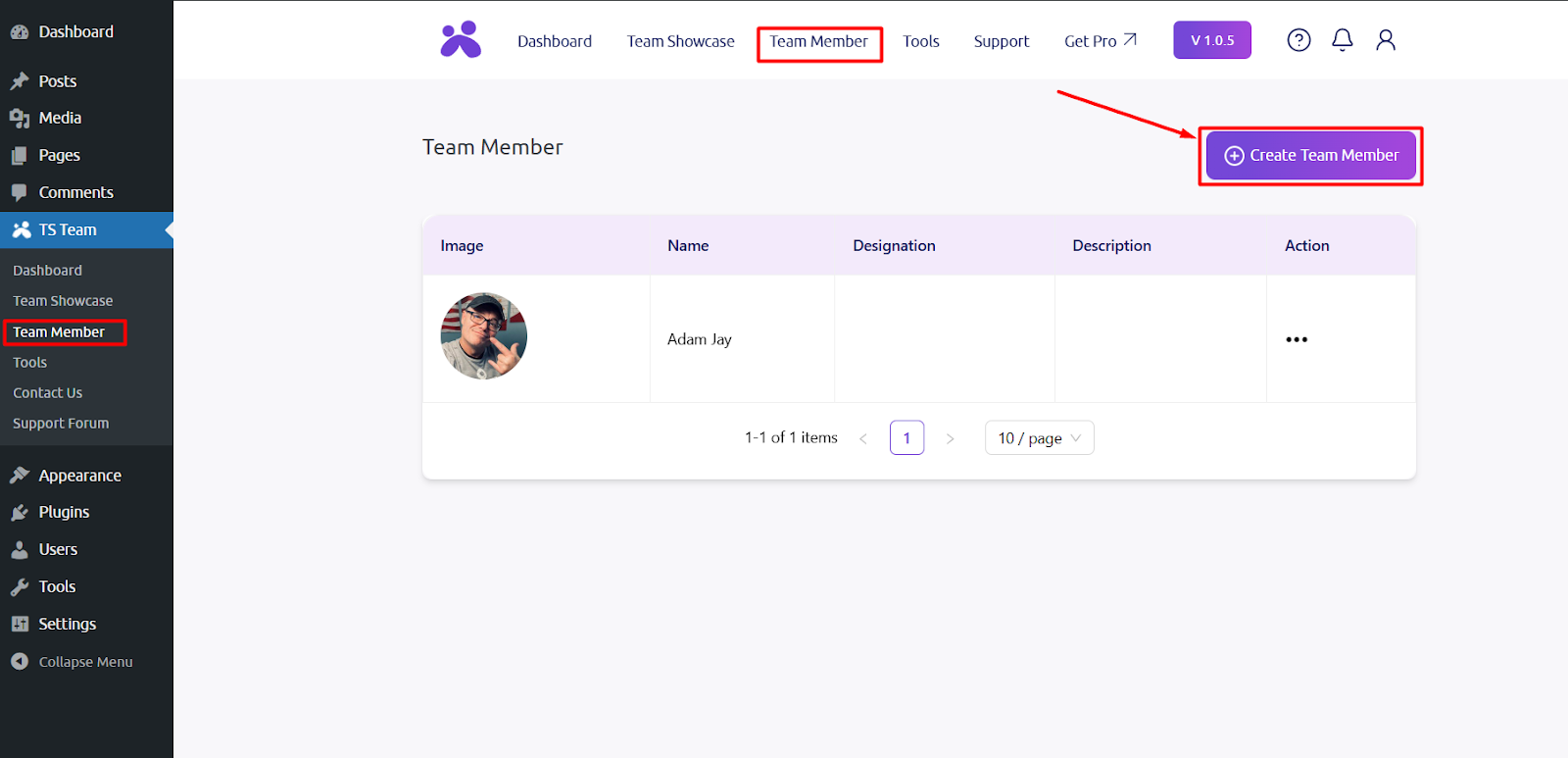
After activating the plugin, go to the Team Member section and click on Create Team Member.
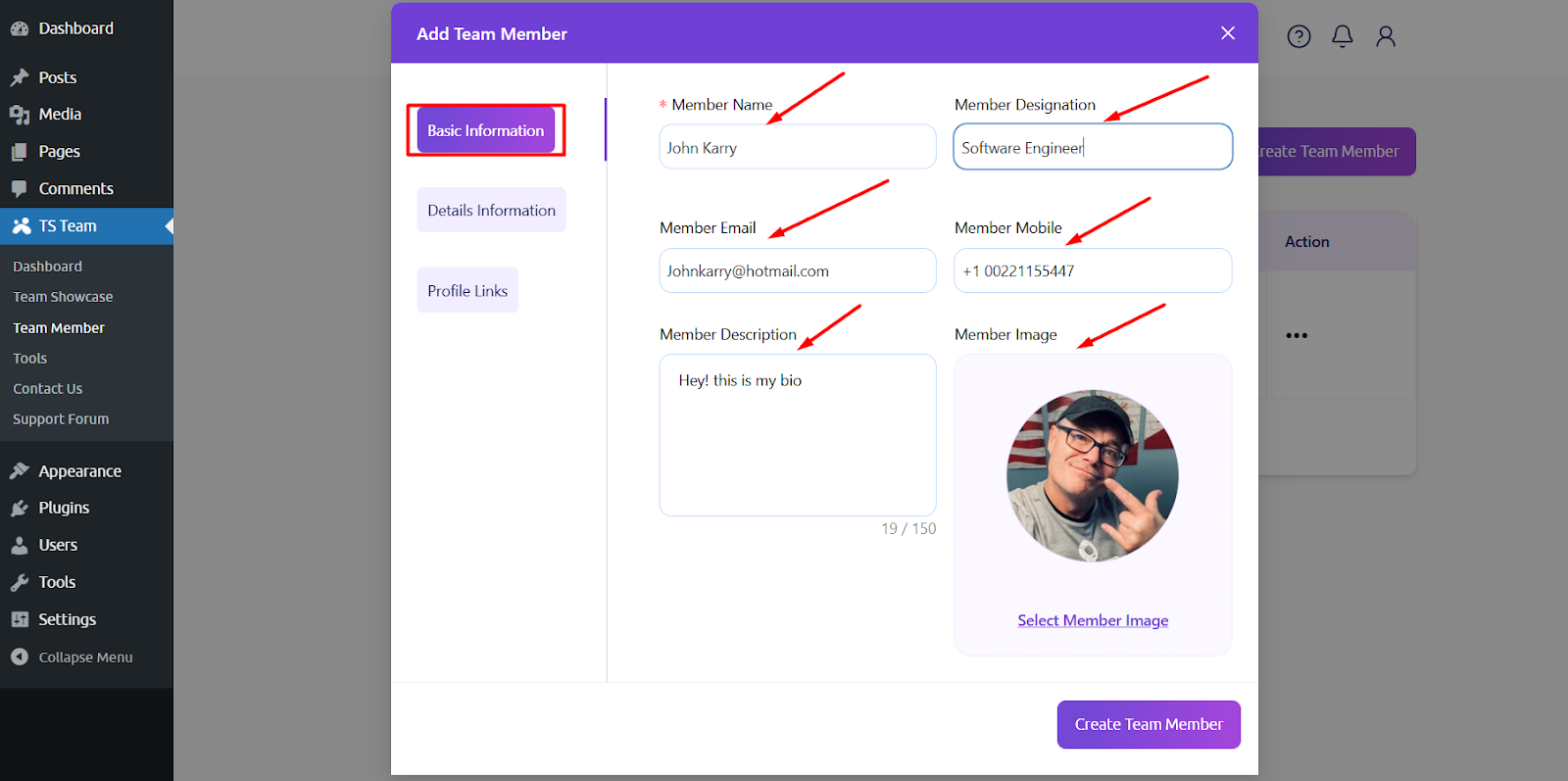
Step 1: Basic Information
Fill in the details for Member Name, Member Designation, Member Email, Member Mobile, Member Description & Member Image. After that, click the Details Information tab.
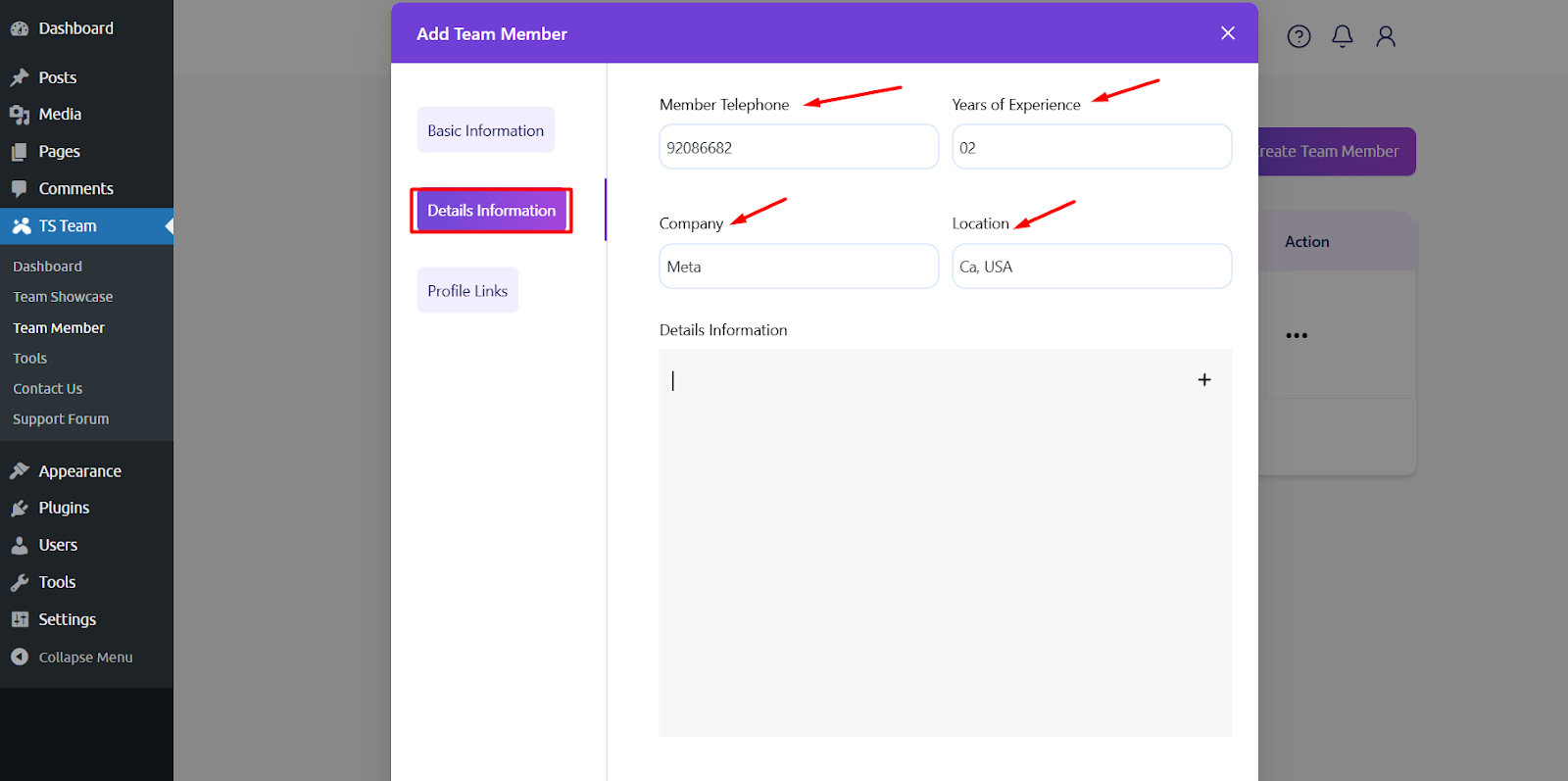
Step 2: Details Information
In this section, fill in the details for Member Telephone, Years of Experience, Company Name, Location & Details Information.
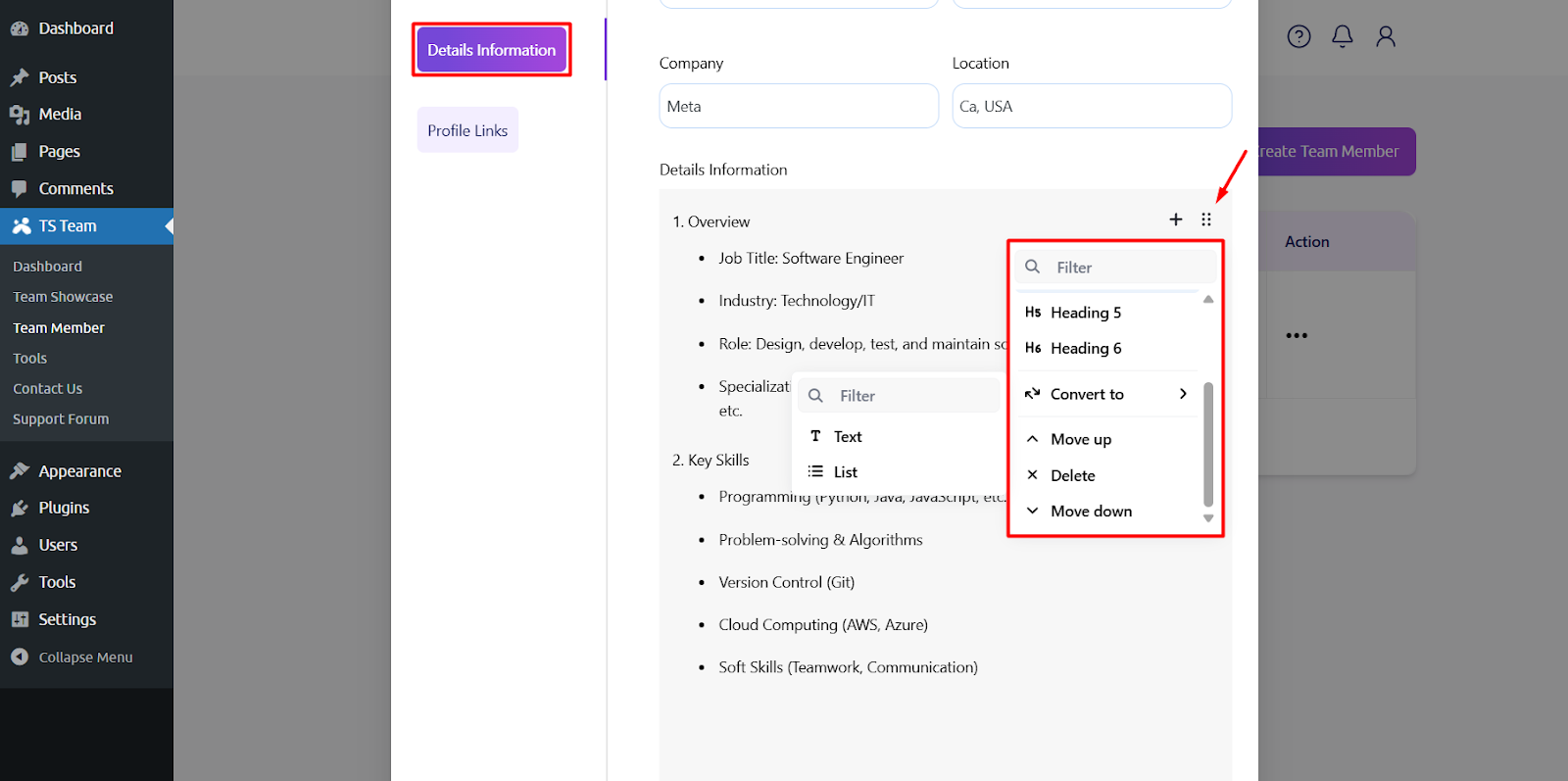
The Details Information field allows you to customize it like the block editor. Transform text into headings & lists and apply styles like bold, italic, and many more. Additionally, you could move any text with the drag-and-drop feature.
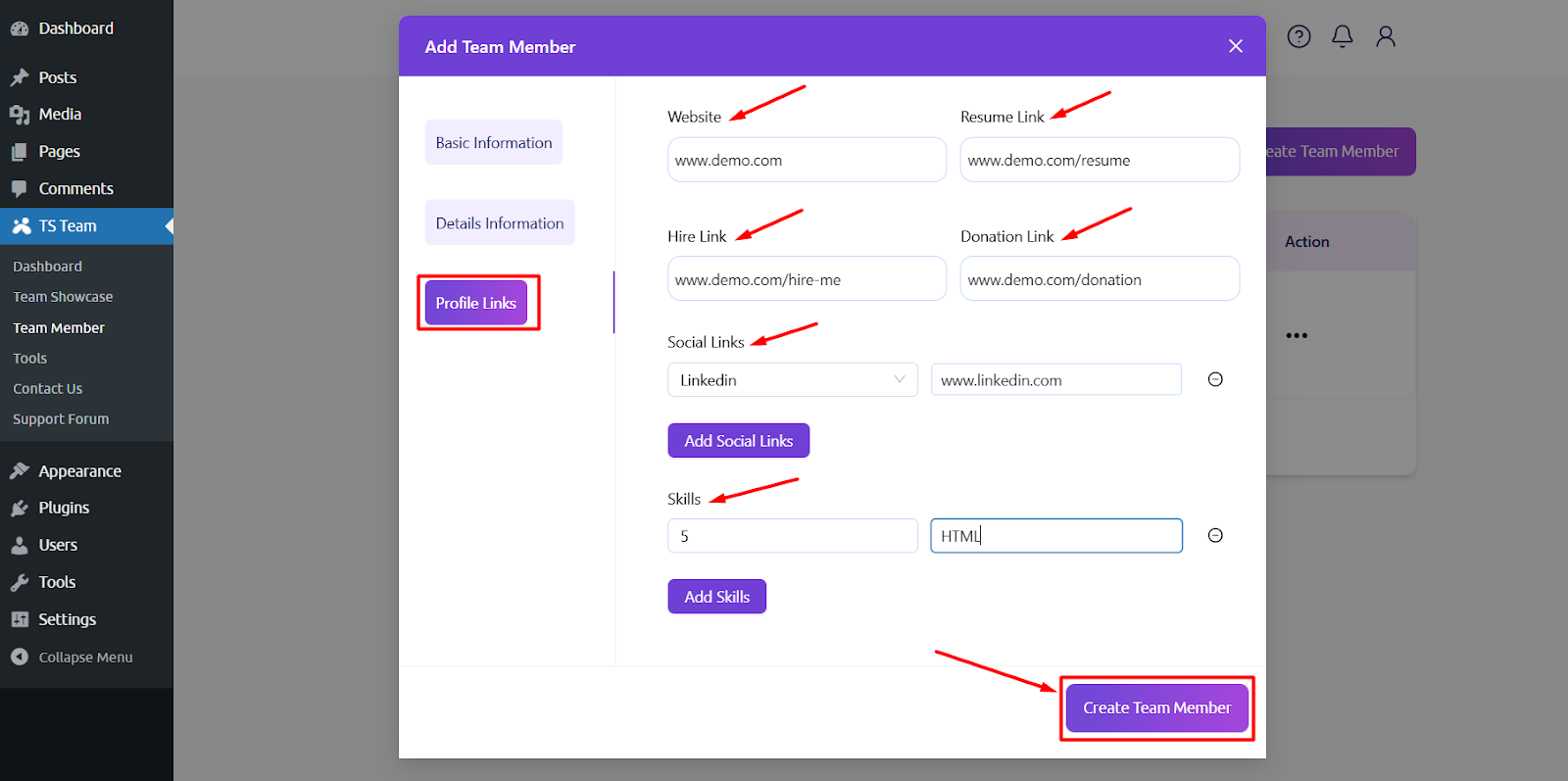
Step 3: Profile Links
Now, add the Website URL, Resume Link, Hire Link, Donation Link, Social Links & Skills and finally click the “Create Team Member”.
You can add unlimited team members this way. You’ll find the All Members list after adding members similarly.